
Table of contents
- What a WordPress email integration should actually do
- Where integration problems usually start
- Quiet failures often start with small settings changes
- How to map the data flow before installing another plugin
- What to test before relying on the integration
- Test the full chain, not one isolated message
- Why plugin conflicts and duplicated functions create hidden problems
- Watch for duplicate triggers after redesigns and migrations
- How to create a simple fallback and maintenance plan
- The practical order for improving WordPress email integrations
- WordPress email integrations – Frequently Asked Questions
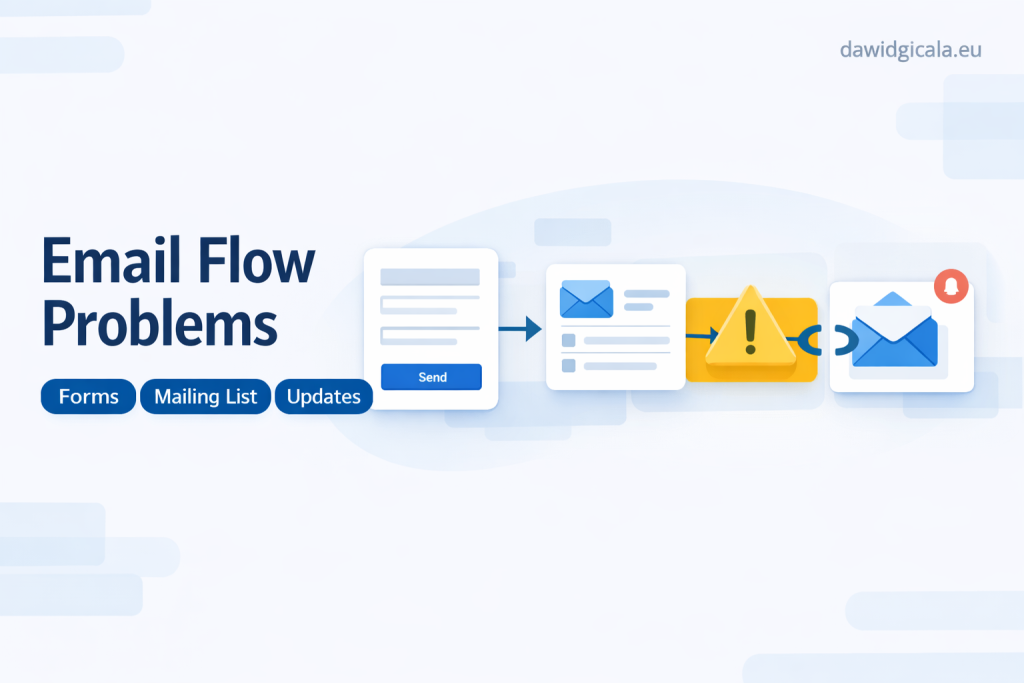
WordPress email integrations often fail in a frustrating way: the website still looks normal, forms still submit, orders may still appear, and no obvious error message shows up on the screen. Meanwhile, a lead confirmation is not sent, an admin notification disappears, a WooCommerce email arrives late, or a subscriber is added to the wrong list. That is why WordPress email integrations need to be treated as a working process, not just a one-time connection.
The quiet failures usually start after plugin updates, theme changes, SMTP adjustments, automation edits, or small settings changes that seem unrelated. A form plugin, email plugin, CRM connection, consent field, checkout customisation, or caching layer can affect the message flow. The real risk is not only that email stops completely, but that the wrong data moves, the message goes to the wrong recipient, or nobody notices the break for days.
What a WordPress email integration should actually do
A proper email integration should do more than send a message from WordPress to an inbox. It should move the right event at the right moment, with the right fields, to the right destination. That may mean a contact form submission triggers an internal notification, a customer gets a confirmation email, a newsletter tool receives consent status, or a CRM gets a tagged lead for follow-up. If one of these parts changes, the integration may still appear active while the business logic breaks.
For that reason, the real question is not “does the plugin send email?” but “what should happen after this action, and how will I know it actually happened?” A useful email integration usually has a clear trigger, expected recipients, field mapping, consent rules, fallback behaviour, and a simple way to verify delivery. Without that structure, small updates can create silent problems that only appear when a customer says they never received anything.
Where integration problems usually start
Most problems begin where several plugins or services touch the same step. A form plugin may create the submission, an SMTP plugin may handle delivery, a marketing tool may subscribe the address, and a CRM or automation tool may add a tag or start a sequence. Each part can work on its own, but the full flow can still fail if one condition changes. A renamed field, changed checkbox, replaced sender address, or modified webhook can interrupt the chain without causing a visible frontend error.
A common pattern is that someone updates one plugin to solve a security or compatibility issue, then assumes the email setup remains unchanged. In many cases, the update resets a sender name, changes a consent field ID, disables HTML formatting, or affects how hooks fire during form submission. Example: a contact form still sends admin notifications, but the CRM no longer receives the lead because the field used for consent was renamed and the automation now rejects the submission.
Quiet failures often start with small settings changes
These failures are easy to miss because they do not always look like technical errors. A checkbox can become optional when it should be required, a notification can switch to a different recipient, or a test email can work while real transactional messages fail. Example: a WooCommerce order email works in test mode, but real customer emails stop after the sender domain settings are changed and the live store now uses a different “from” address than the mail service expects.
How to map the data flow before installing another plugin
Before adding a new connector, automation plugin, or email service extension, it is worth mapping the flow in plain language. Start with one event only, such as “user submits contact form” or “customer completes checkout.” Then list what should happen next: admin notification, customer confirmation, list subscription, tag assignment, CRM entry, or follow-up sequence. This simple map makes it easier to see which tool owns which step and where duplication may already exist.
The key is to define one source of truth for each action. If one plugin sends the confirmation email and another plugin also tries to do it through automation, double messages or conflicting conditions can appear. Example: a website uses a form plugin notification and a marketing automation rule for the same welcome message. After an update, both start firing again, so users receive two similar emails and the site owner thinks the email service is broken, when the real issue is duplicated responsibility.
What to test before relying on the integration
Testing should cover more than whether a message arrives once. You need to check real scenarios: valid submission, incomplete submission, consent accepted, consent not accepted, customer order, failed payment, mobile form use, and repeated submissions. Also check what data arrives in each tool. If a form sends an email but drops the phone number, company name, selected service, or consent status, the integration is only partially working.
Test the full chain, not one isolated message
A practical test sequence often starts in the browser and ends in the final system. Submit the form, confirm the frontend message, check whether WordPress recorded the event, verify the email notification, confirm the external tool received the same fields, and review whether any automation started correctly. Example: an enquiry email reaches the inbox, but the lead is missing from the mailing list because the list subscription depends on a hidden field that was removed during a form redesign.
It is also worth testing after updates in a staging or low-risk environment where possible, especially when the website depends on emails for sales enquiries, appointments, checkout updates, or support. Check not only success cases but also edge cases. Example: a user enters special characters in their name, the form accepts the submission, but the email template breaks and the CRM entry remains incomplete. That may suggest a formatting or encoding issue rather than a delivery issue.
If the integration touches forms, checkout, analytics or customer data, it is safer to check the whole flow instead of only installing another plugin.
Why plugin conflicts and duplicated functions create hidden problems
WordPress email problems are often not caused by one broken plugin, but by overlapping functions. A form builder may have built-in notifications, an SMTP plugin changes delivery, a CRM extension adds syncing, a marketing plugin injects subscription options, and WooCommerce handles transactional messages. When multiple tools try to control sender details, templates, recipients, hooks, or background tasks, the final behaviour becomes harder to predict after updates.
Another hidden issue is that one plugin may continue to work while another stops responding to the same event. Example: the admin still receives order notifications, but customer emails stop because a checkout customisation plugin changed the order status flow and the expected trigger no longer fires at the same point. This is why plugin count matters less than functional overlap. Too many tools doing similar things increases the chance of silent failures.
Watch for duplicate triggers after redesigns and migrations
After a redesign, migration, or form replacement, old automations sometimes remain active in the background. The site owner sees the new frontend, but the old integration logic still exists in plugin settings or an external service. That can create double sends, missing tags, or list subscriptions based on outdated fields. A quiet failure is not always “nothing happened”; sometimes the wrong action happened and it only becomes visible when records do not match.
How to create a simple fallback and maintenance plan
A practical fallback plan for WordPress email integrations does not need to be complicated. It should define what must be noticed quickly, who checks it, and what temporary process exists if automation fails. For example, if contact forms are critical, store submissions in WordPress or another system in addition to sending notifications. If checkout emails matter, know how to manually resend them. If a mailing list sync is important, keep a way to export recent contacts and compare what was captured.
Maintenance means checking integrations after updates, not just updating plugins and moving on. Review recent plugin changes, test one or two key flows, confirm recipients and sender settings, and watch for changes in consent, templates, or field mapping. Example: an email integration starts sending to an old admin address after a settings import during migration. The website still sends messages, but the right team no longer sees them. That is exactly the kind of problem a simple maintenance checklist can catch.
A good integration is not just a connection between tools. It is a small process that needs a clear owner, testing and a way to notice when something stops working.
The practical order for improving WordPress email integrations
The safest improvement order is usually this: identify the most important email flow, map the expected trigger and destination, remove duplicate responsibility, test the full sequence, and only then add new automation if needed. This avoids the common mistake of stacking one more plugin on top of an unclear process. If the current setup is already hard to explain, adding another connection usually increases risk instead of reducing it.
In many cases, the fastest win is not replacing everything, but simplifying the flow. Keep one plugin responsible for form capture, one delivery method, one marketing subscription path, and one clear fallback. Example: a business owner thinks email delivery is failing, but the real issue is that two different forms send to two different inboxes and only one is monitored. Once the flow is simplified, future updates become easier to test and much easier to trust.
If you already have connected tools but you are not sure where the flow breaks, the first step is usually a practical check of forms, emails, tracking, checkout and updates.
WordPress email integrations – Frequently Asked Questions
Email integrations in WordPress often look simple until one update or settings change affects the full flow. These questions focus on the practical checks website owners usually need before they trust forms, checkout emails, automations, or list syncing.
Why do WordPress email integrations fail without showing an obvious error?
Because many failures happen after the form submission itself succeeds. The frontend may show a success message while the notification, field mapping, automation trigger, or recipient settings fail later in the process.
Should I test only the form, or the whole email path?
You should test the whole path. A form can submit correctly while the email goes to the wrong inbox, the customer confirmation is not sent, or the CRM and mailing list do not receive the same data.
Can plugin updates really change email behaviour that much?
Yes, they can. Updates may affect hooks, template handling, sender settings, field IDs, consent logic, or compatibility with other plugins. That does not always break everything, but it is enough to justify post-update checks for important flows.
What is the biggest mistake when connecting WordPress to an email tool?
A common mistake is giving the same job to multiple plugins or automations. When more than one tool sends the same message or manages the same subscriber action, it becomes harder to see which part is responsible when something changes.
How do I know whether my WooCommerce emails are reliable after a checkout change?
Test real order scenarios, not just one sample message. Check order status changes, customer emails, admin notifications, failed payments, and any custom checkout logic that may affect when transactional emails are triggered.
What is a sensible fallback if email automation is important for my website?
Keep a way to store the original submission or order data, know who checks recent entries, and define a manual action if the email path breaks. That may include saved form entries, order notes, manual resending, or regular checks of the final destination system.
MY SERVICES
Choose the service that fits your project
Choose the area where you need a concrete implementation, better results or further development.
Search engine optimization
Content, landing pages, internal linking and ongoing organic visibility growth.
View SEO servicesWordPress & WooCommerce Websites
New websites and online stores, technical improvements and further development.
View website servicesGoogle Ads | Offer
Campaign setup, management and ongoing optimisation.
View Google Ads servicesSponsored posts and link building
Publications, content and external links matched to your industry and project.
View link building services