Selling memberships inside WordPress sounds simple until you have to manage access after every purchase. That is where the FluentCommunity integration becomes useful. It connects FluentCart with FluentCommunity, so you can automatically give buyers access to the right Spaces or Courses instead of handling everything by hand.
This setup makes more sense as soon as you sell more than one offer. You can build general rules for all customers or create product-specific automations for selected memberships, courses, or community areas. In practice, that means a cleaner sales flow, less admin work, and a setup that fits membership sites, online courses, and community-based businesses much better.

What Is the FluentCommunity Integration and Why Does It Matter for Membership Sales?
FluentCommunity integration connects FluentCart with FluentCommunity inside WordPress. Its job is simple: when someone buys the right product, FluentCart can automatically give that user access to selected community spaces or courses. FluentCart presents this as a native way to sell memberships, courses, subscriptions, and private spaces from the WordPress dashboard.
This matters because membership sales often break down after checkout, not before it. Payment may work, but access still gets handled by hand. With this integration, you can link the purchase to the next step, so the buyer gets the right access without manual admin work. The official docs also show that the same setup can remove access later when needed, which makes it useful for ongoing memberships and subscription-based offers.
For a small business owner, creator, or course seller, that means fewer routine tasks in the backend. Instead of checking each order and updating access one by one, you build a rule once and let it run. That is the main practical value of the FluentCommunity integration.
How Does FluentCart Work with FluentCommunity After Checkout?
The setup runs through an integration feed. In FluentCart, a feed is the rule that tells the system what should happen after a chosen event. In this case, that action can be adding a user to a FluentCommunity space, enrolling them in a course, or removing them from one later. The docs show two main ways to build this: a global integration and a product-specific integration.
A global integration applies across the store. A product-specific integration works only for one selected product. The official FluentCart docs describe product-specific integrations as the better fit for targeted automations, such as granting access that matches the exact product a customer bought. That makes them especially useful for paid communities, membership tiers, and course offers.
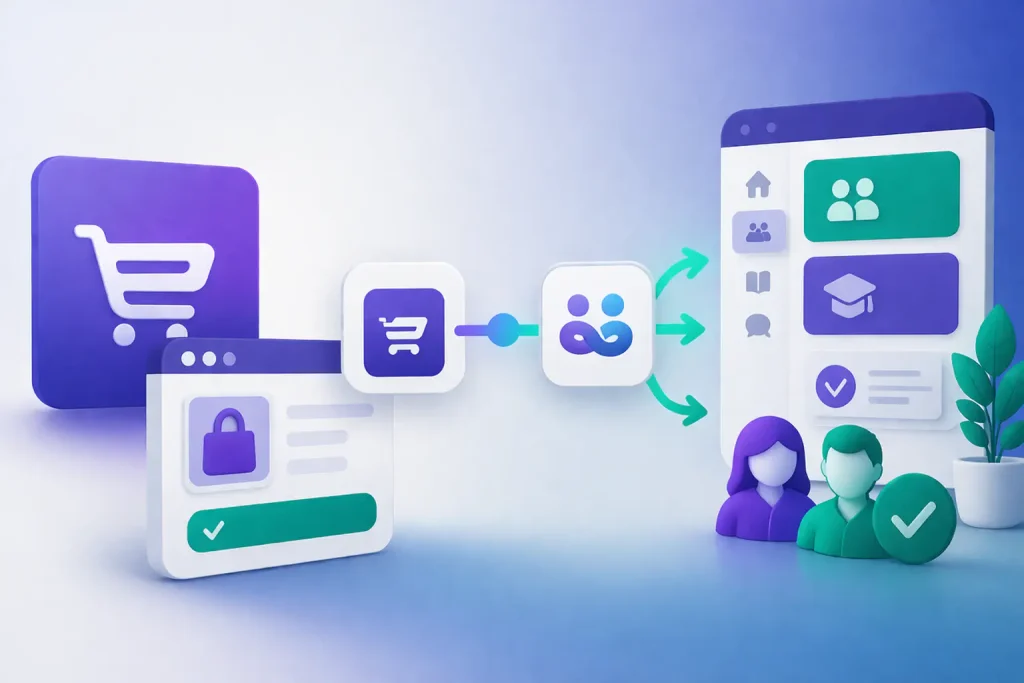
After checkout, the flow is straightforward. The customer buys a product, FluentCart reaches the trigger you selected, and the feed runs the matching FluentCommunity action. FluentCart’s own integration page frames this as a four-step process: install FluentCart, activate it, configure the integration feed, and start selling memberships or courses.
What Can You Sell with This Setup? Memberships, Courses, Subscriptions, and Private Spaces
The official integration page is clear about the core use cases. This setup can support memberships, courses, subscriptions, and private spaces in FluentCommunity. That gives you more flexibility than a simple one-product, one-page sale. You can use it for a paid community, a course area, a recurring membership, or a mix of those models inside one WordPress site.
The access side is also flexible. The documentation shows feed options for adding users to spaces, adding them to courses, and removing them from spaces or courses when needed. The official product page also mentions the ability to mark members as verified, which can be useful when you want paid members to stand out inside the community.
In practice, this means you can sell more than “content.” You can sell entry to a private member area, access to one or more courses, a subscription that controls ongoing access, or a premium community layer built around selected spaces. That is what makes the FluentCommunity integration useful for creators, educators, and community-led businesses that want checkout and access to work as one system instead of two separate processes.
How Access Automation Works in Practice – Spaces, Courses, and Verified Profiles
The core idea is simple. A customer buys a product, FluentCart reaches the trigger you selected, and the integration runs the matching action in FluentCommunity. The docs show actions for adding users to spaces, adding them to courses, removing them from spaces, removing them from courses, and marking a member as verified.
That gives you a lot of control without making the setup overly technical. You can use one product to unlock a private space, another to unlock a course, and another to do both. The official integration page also presents this setup as a way to sell memberships, courses, subscriptions, and private spaces from the WordPress dashboard.
The verified profile option is a nice example of how this can go beyond simple access. Instead of only opening content, the rule can also change how a paid member appears inside the community. For membership-based communities, that can help separate standard users from paying members in a more visible way. The verification action itself is documented by FluentCart.
How to Set Up the FluentCommunity Integration Step by Step in WordPress
The setup starts in the Integrations area of FluentCart. From there, you add a new integration and select FluentCommunity. The docs then take you to the feed configuration screen, where you choose the action, name the feed, and turn it on. FluentCart also presents the overall process in four simple stages: install, activate, configure, and sell.
The next step is choosing the right structure. You can build a global integration from the main integrations dashboard, or you can add a product-specific integration inside a product’s settings. Product-level rules usually make more sense when each product should unlock a specific space, course, or membership path. FluentCart documents both approaches.
Before you go live, check the payment side too. FluentCart’s payment docs show that payment gateways and checkout behavior are configured separately in the Payment Settings area, and their Stripe guide explicitly mentions test mode for checking the checkout flow. That matters because the access automation only feels smooth when the payment event and the membership rule work together.
The Most Important Settings to Check Before You Start Selling
Start with the feed type. Decide whether you need a global rule or a product-specific one. A global setup can work for broad store-wide actions, but product-specific integrations are usually better when different products should grant different types of access. FluentCart supports both, so the important part is choosing the one that matches your sales model.
Then check the action itself. Make sure the feed does exactly what you want: add to a space, add to a course, remove from a space, remove from a course, or mark the member as verified. One wrong action can create confusion fast, especially when you sell more than one offer. FluentCart’s FluentCommunity integration docs list these actions clearly in the feed setup.
It is also worth checking your product structure before launch. FluentCart supports product pricing setups that include simple products, subscriptions, and simple variations. If your membership model uses different plans or tiers, that product structure needs to make sense before you attach automation to it.
Finally, review checkout and account behavior. FluentCart documents cart and checkout settings separately, including how customer accounts are handled during checkout. That detail matters for membership sales because access works better when the buyer’s account flow is clean from the start.
What Does a Real Membership Sales Flow Look Like with FluentCart and FluentCommunity?
A simple flow looks like this: a customer buys a product in FluentCart, the selected event trigger fires, and the integration gives that user access to the right FluentCommunity space or course. FluentCart presents this setup as a way to sell memberships, courses, subscriptions, and private spaces directly inside WordPress.
This gets more useful when you sell different offers. The docs show that product-specific integrations work well for targeted access, such as giving access to a course that matches the exact product the customer bought. They also note that product-specific rules take priority over global ones.
You can also shape the flow around paid community status. FluentCart lets you add members to spaces, enroll them in courses, and mark their profile as verified. That makes the setup useful not only for selling content, but also for building a paid community layer inside WordPress.
When Does This Integration Save the Most Time and Reduce Manual Work?
This integration saves the most time when you no longer want to manage access by hand after each purchase. FluentCart says it can add customers to Spaces and Courses automatically after checkout, which removes one of the most repetitive tasks in membership and course sales.
It becomes even more useful when your offers are more structured. FluentCart supports simple pricing, subscriptions, and simple variations, including recurring billing and variation-level pricing. That gives you room to sell different plans or access levels without rebuilding the whole sales flow each time.
It also cuts down on cleanup work later. The integration can remove users from selected spaces or courses when there is a refund or when subscription access expires. If you sell recurring memberships, that can save a lot of manual checking and reduce access mistakes.
Common Setup Mistakes, Access Problems, and Subscription Issues – How to Avoid Them
The first common mistake is using the wrong rule type. FluentCart supports both global and product-specific integrations, but the docs describe product-specific rules as the better option for targeted automations tied to a specific product. If you choose the wrong structure, access can become harder to manage as your store grows.
Another common issue is choosing the wrong action or trigger. In the feed settings, FluentCart lets you add users to spaces, add them to courses, remove them from spaces or courses, mark profiles as verified, and choose triggers such as Order Paid, Subscription Activated, Subscription Renewed, Subscription Canceled, or Subscription Expired. One wrong combination here can grant access too early, remove it at the wrong time, or send users into the wrong area.
The last problem often starts at checkout. FluentCart’s checkout settings highlight account creation as a crucial decision, and they recommend automatic account creation after payment for stores selling subscriptions. That matters here because membership access works more smoothly when the buyer account flow is clear from the start.
Should You Configure the FluentCommunity Integration Yourself or Outsource It?
You can set it up yourself if your flow is simple. A basic setup usually means one product, one access rule, and one clear outcome, such as adding a buyer to one Space or one Course. FluentCart’s docs show a straightforward process: create a feed, choose the action, set the trigger, and enable the integration.
Outsourcing makes more sense when your setup has more moving parts. That usually happens when you combine global rules with product-specific rules, sell subscriptions, use product variations, or want access removed after refunds or subscription expiration. FluentCart also notes that product-specific rules take priority over global rules, so the logic can get harder to manage as the store grows.
It also helps to get support when you want the whole flow checked from checkout to access. FluentCart’s cart and checkout settings control account creation, and the docs recommend automatic account creation after payment for subscription-based products. That can matter a lot for membership sales, because access works more smoothly when the customer account already exists.
FluentCommunity Integration FAQ
If you want to sell memberships, private Spaces, or courses inside WordPress, most questions come down to access, timing, and setup logic. The answers below stay close to FluentCart’s official integration page and documentation.
Can FluentCart automatically add buyers to FluentCommunity Spaces?
Yes. FluentCart’s docs say you can automatically add customers to one or more FluentCommunity Spaces after the selected event runs.
Can FluentCart enroll buyers in FluentCommunity Courses too?
Yes. The integration feed supports adding customers to one or more FluentCommunity Courses.
Can I remove access automatically after a refund or expired subscription?
Yes. FluentCart includes an option to remove users from selected Courses and Spaces on refund or subscription access expiration. The product page also highlights access revocation on refunds or subscription expiration as a core benefit.
Can I mark paid members as verified automatically?
Yes. The integration feed includes an option to mark the community profile as verified, which FluentCart describes as a way to signal that the user is a paying member.
What event triggers can run this automation?
FluentCart lists several triggers, including Order Paid, Order Canceled, Order Refunded, Subscription Activated, Subscription Canceled, Subscription Renewed, Subscription End of Term, Subscription Expired, Shipping, Order Shipped, and Order Delivered.
Should I use a global integration or a product-specific one?
Use a global integration when you want one general rule for all paying customers. Use a product-specific integration when access should depend on a specific product or variation. FluentCart also states that product-specific rules take priority over global rules.
Can I run the automation only for selected product variations?
Yes. In product-specific integrations, FluentCart lets you run the feed only for selected variations. That is useful when different tiers should unlock different Spaces or Courses.