Whether you want to restrict access to certain posts or create private pages that only select visitors can view, the Unlist Posts & Pages plugin offers a simple yet powerful solution. This guide will walk you through everything from installing the plugin to using it to hide specific pieces of content, ensuring they remain invisible to the public and search engines alike. Perfect for those who need privacy without the hassle, this plugin makes controlling content visibility a breeze.
What is the Unlist Posts & Pages Plugin?
Have you ever wanted a page on your WordPress site to be visible only to those with a direct link? The Unlist Posts & Pages plugin is your go-to solution. This unique plugin allows you to hide specific pages or posts so they’re accessible only through a direct URL. This means these pages won’t show up in search engine results or your site’s navigation, ensuring privacy and exclusivity.
Why is this useful? Think about private events, sensitive information, or exclusive content that you only want certain eyes to see. This plugin makes it simple and straightforward—no need for complex coding or expensive IT help. It’s a tool that empowers you to manage your content’s visibility entirely on your own.
Installing the Plugin to Hide Pages
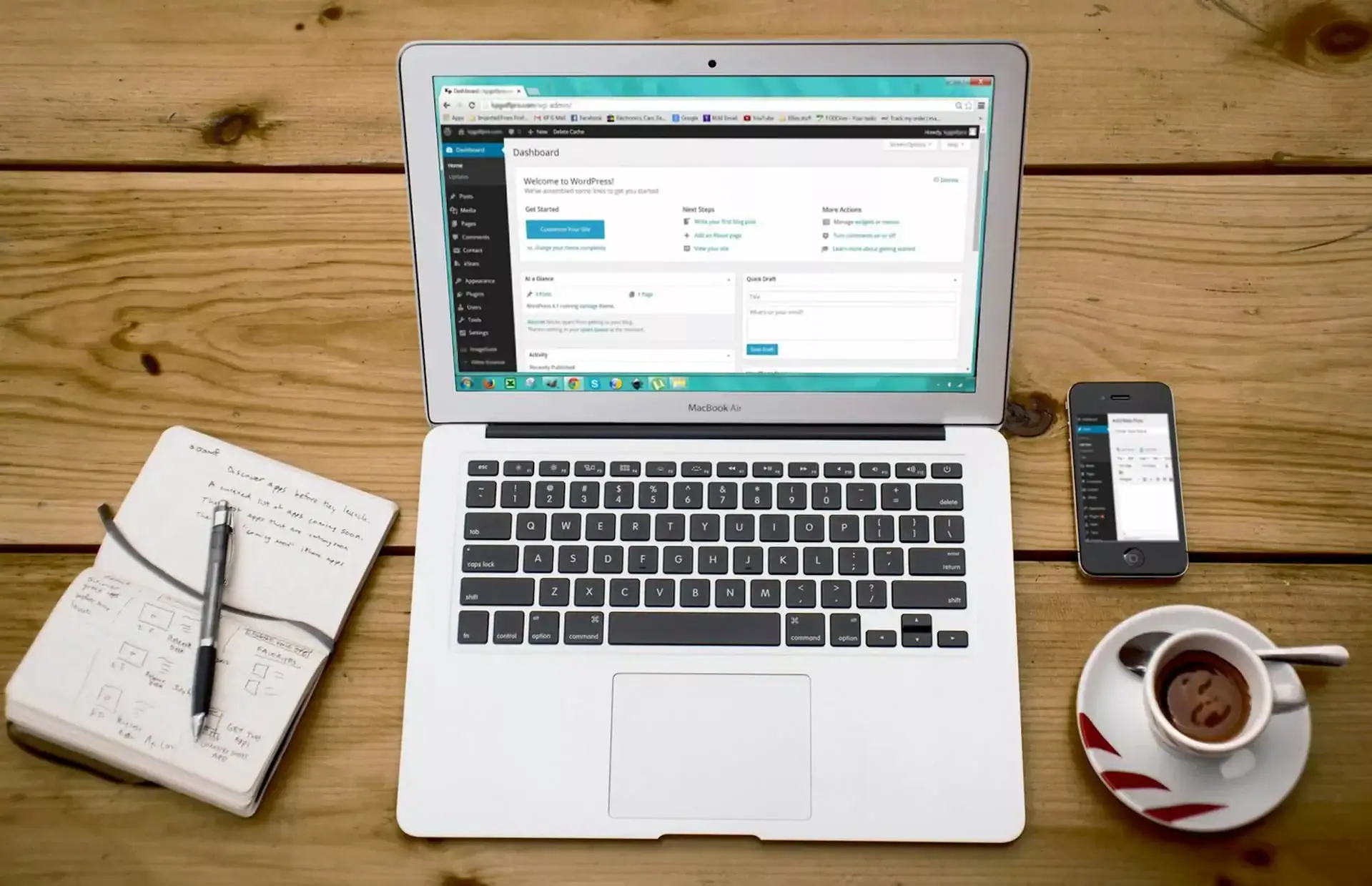
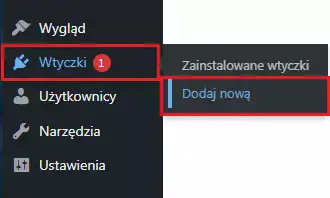
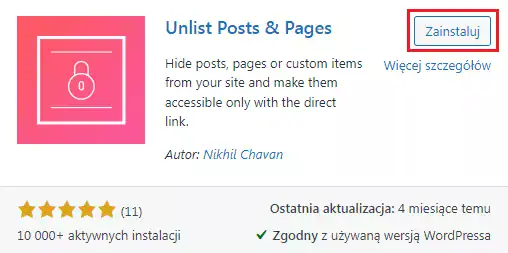
Ready to take control of your content’s visibility? Let’s start by installing the Unlist Posts & Pages plugin. First, log into your WordPress admin panel. Navigate to the ‘Plugins’ section and click on ‘Add New’. Here’s where the simplicity kicks in: just type “Unlist Posts & Pages” into the search bar. You’ll find it right at the top of the search results.
Once you spot the plugin, hit ‘Install Now’. Take a moment here—once it’s installed, you’ll need to activate it by pressing ‘Activate’. And just like that, you’ve equipped your WordPress site with a powerful tool for managing privacy. If you run into any hitches, don’t worry. Check out my tips on troubleshooting installation issues to ensure everything runs smoothly.

How to Hide a Page so It’s Only Visible Through a Link?
Now that the Unlist Posts & Pages plugin is installed and activated, let’s dive into how to hide a specific page or post. Whether you’re hiding a page or a post, the steps are the same, so I’ll show you using a page as an example.
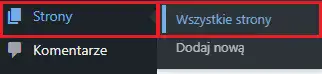
First, head back to your WordPress admin dashboard. Click on the ‘Pages’ section, then select ‘All Pages’ to see all your content. Browse through your list until you find the page you want to hide. Hover over it, and click ‘Edit’.
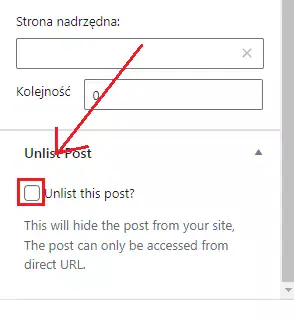
Once you’re in the edit mode, your final step is to make the page unlisted. Scroll down to the very bottom of the sidebar in the edit screen. You’ll see a checkbox labeled ‘Unlist this post’. Check it.
All that’s left is to save your changes. Click the ‘Update’ button, which is usually located in the top right corner of the screen. Congratulations! Your page is now hidden—it will not appear in any site search results or page listings. Only those with the direct link can access it, ensuring your content is kept private and accessible only to your intended audience.



Unlist Posts & Pages – Frequently Asked Questions
Does using Unlist Posts & Pages affect my site’s SEO?
Unlisting a post or page means it won’t be indexed by search engines. This is perfect for content you don’t want the public to stumble upon, but remember, it won’t contribute to your site’s SEO efforts either.
Can I unlist multiple pages at once?
Currently, you need to unlist pages individually. However, the process is quick and doesn’t require technical skills.
What happens if I deactivate the plugin?
If you deactivate the plugin, any previously unlisted posts or pages will become visible again. Always consider this before deactivating.
Is it possible to schedule a page to be unlisted at a specific time?
The plugin does not currently support scheduling. You must manually unlist and relist pages as needed.
How secure is the Unlist Posts & Pages plugin?
The plugin is designed to be a straightforward solution for hiding content. While it effectively restricts visibility, it doesn’t encrypt the page or provide additional security layers. Use it as part of your broader privacy and security strategies.